
How to Set Up Claude Cowork Scheduled Tasks
Until a week ago, Claude Cowork was reactive. You opened it, described what you wanted, and it got to work. Powerful, but you had to remember to start it every time.
That changed on February 24 when Anthropic shipped scheduled tasks. Now you write a prompt once, tell Cowork how often to run it, and it handles the rest. A morning briefing that summarizes your Slack channels and email before you sit down. A weekly report that compiles project status from your working folder every Friday at 4 PM. A recurring competitor scan that checks industry news and drops a summary into a markdown file on your desktop.
No code. No APIs. No cron jobs. You describe what you want in plain language, pick a cadence, and Cowork runs it on schedule.
How to set them up
There are two ways to create a scheduled task, and they're suited for different situations.
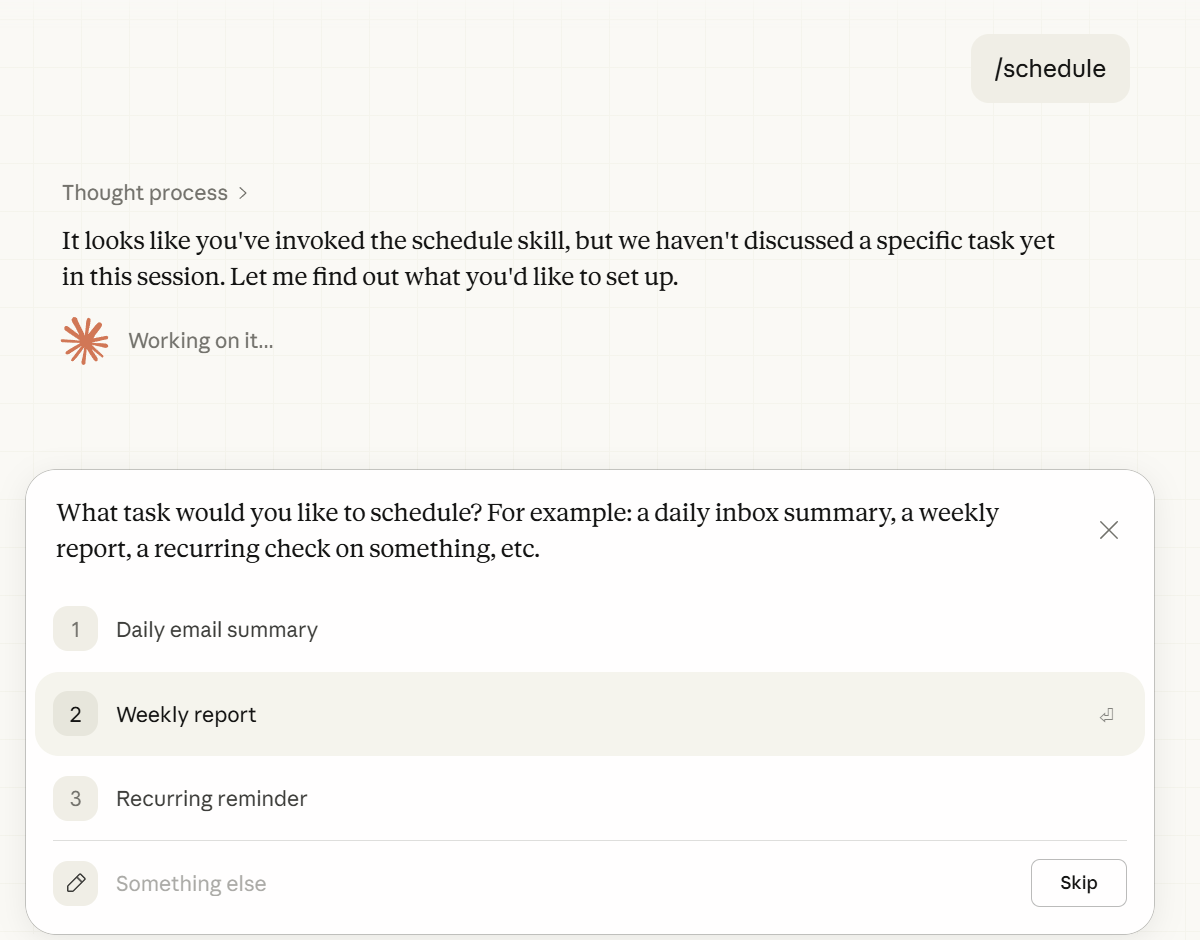
Method 1: From a conversation. Open Cowork, start a new task or use one you're already working on, and type /schedule. Claude will walk you through the setup -- asking about frequency, timing, and the specifics of what you want done. This is the better option when you're starting from a rough idea, because Claude helps you refine the prompt and figure out the right scope.
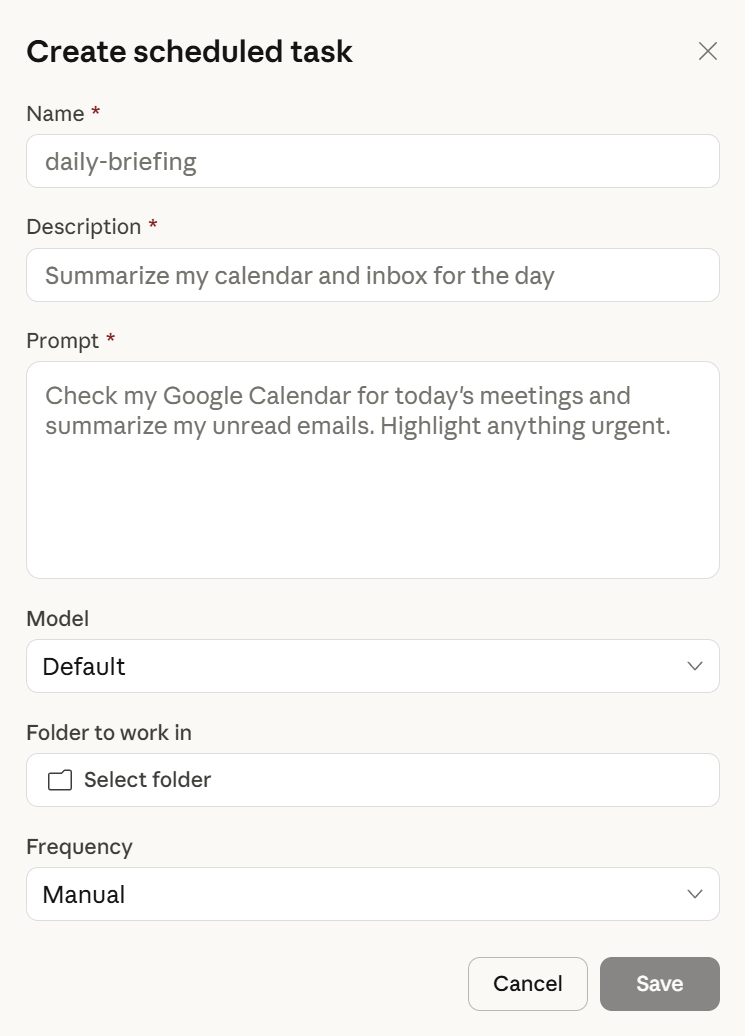
Method 2: From the sidebar. Click "Scheduled" in the left sidebar, then "New task" in the upper right. This opens a modal where you enter the name, description, prompt instructions, frequency, model choice, and working folder directly. This method works best when you already have a well-defined prompt and know exactly what you want.
Either way, setup takes about two minutes.
Once a task is created, it lives in the "Scheduled" section of the sidebar. From there you can view upcoming and past runs, edit instructions or cadence, pause or resume, delete, or trigger a run on demand.
One detail worth knowing: your initial prompt won't stay exactly as you wrote it. After the first run, Claude rewrites the instructions based on what it learned -- which connectors it used, where it found the data, what worked. This is actually helpful. It means the second run is usually better than the first, because Claude has refined its own playbook.
What works well
Scheduled tasks inherit everything Cowork can do -- file access, web search, connectors (Slack, Gmail, Google Drive, and others via MCP), plugins, and sub-agent coordination. That makes the range of possibilities wide. But after reviewing what early adopters are actually using them for, a few categories stand out as consistently strong.
Morning briefings. This is the use case everyone starts with, and it's the one that sticks. Set a task to run at 7:30 AM on weekdays. Have it check your Slack channels, summarize overnight activity, flag anything that needs a response, pull your calendar for the day, and write it all to a markdown file in your working folder. By the time you sit down with coffee, context is already there. One user -- an orthopedic surgeon at Duke who runs multiple side projects -- dispatches five parallel Cowork tasks at 6:15 AM and comes back from breakfast to finished deliverables.
Weekly reports. If you send any kind of recurring status update -- to a client, to your team, to leadership -- this is where scheduled tasks save the most cumulative time. Point the task at your project notes folder, your connected tools, or both. Tell it what to include, what format to use, and where to save the output. Every Friday at 4 PM, a formatted report appears without you touching it. One consultant reported that his weekly client status update, which used to take 45 minutes of manual compilation, now runs entirely on autopilot.
Recurring research. Competitor monitoring, industry news tracking, market updates. Set a weekly task to search the web for recent developments in your space, summarize findings, and save them to a research folder. This is especially useful if you're building topical authority through content -- the research pipeline that feeds your editorial calendar can run on its own.
File organization. A daily or weekly task that sorts your Downloads folder, renames files with consistent date formatting, or moves documents into project-specific directories. This is low-stakes, high-frequency work that's perfect for automation because there's almost no risk if the output is slightly wrong.
Financial reporting. If you have Stripe or other financial tools connected via MCP, you can schedule tasks that pull transaction data, organize it into a spreadsheet, and generate a summary. Invoicing reconciliation -- matching invoices against bank statements -- is another workflow early adopters have automated successfully.
Things to know before you rely on them
Scheduled tasks are genuinely useful, but there are a few practical realities worth understanding upfront so you can set them up for success rather than frustration.
Your computer needs to be awake and the app needs to be open. This is the single most important thing to understand. Scheduled tasks run locally -- not in the cloud. If your machine is asleep, locked, or the Claude Desktop app is closed when a task is scheduled to fire, it gets skipped. Cowork will re-run the task automatically once you're back, and you'll get a notification, but it won't execute at the exact time you specified. The practical implication: schedule tasks during your active hours, or adjust your power settings to keep your machine awake during the window when your tasks should run. Some people use a dedicated Mac Mini specifically for this purpose.
Each task draws from your usage allocation. Cowork sessions consume more tokens than standard chat, and scheduled tasks are Cowork sessions. If you're on the Pro plan at $20/month, running several heavy scheduled tasks daily could push you toward your usage limits faster than expected. Start with one or two lightweight tasks and see how they affect your allocation before scaling up. If you're regularly hitting limits, the Max plan at $100-200/month gives you significantly more headroom.
Start by testing manually before scheduling. Before you put any task on autopilot, run it manually once. Watch what Claude does. Check the output. Make sure it's pulling from the right sources and producing something useful. This is especially important for tasks that use connectors -- external tool integrations can be inconsistent, and you want to catch issues in a supervised run rather than discovering them in a skipped or broken scheduled run.
Avoid tasks that require authentication. When a scheduled task runs, it starts a fresh session. If the task needs to access a website that requires login, it won't have your authentication cookies, and it can't click through a login prompt on your behalf. Stick to tasks that use your already-connected MCP connectors (Slack, Gmail, Google Drive), public web sources, and local files. These work reliably. Tasks that need to log into authenticated web applications are the most common source of failures.
Scope each task narrowly. The best scheduled tasks do one thing well. A task that "summarize my Slack, check my email, organize my files, and write a report" is trying to do too much and is more likely to produce inconsistent results. Break complex workflows into separate tasks. A morning Slack summary. A separate email briefing. A separate file cleanup. Each one runs as its own Cowork session with its own output, and you can manage, pause, or adjust them independently.
Check your time zone settings. A small detail that has tripped people up: make sure your time zone is configured correctly in Claude Desktop settings. One user set a task for 9 AM and it ran at 6 AM because the time zone was wrong.
How connectors and plugins multiply the value
Scheduled tasks on their own work with local files and web search. But they become substantially more useful when combined with Cowork's connectors and plugins.
Connectors link Claude to external tools via MCP -- Slack, Gmail, Google Calendar, Google Drive, GitHub, Notion, Linear, and a growing list of others. When a scheduled task has access to a connector, it can pull real data from your tools rather than just searching the open web. That's the difference between "search for news about my competitors" and "summarize what my team discussed in Slack yesterday, pull the latest metrics from Google Drive, and compile a status update."
Plugins bundle domain-specific skills, commands, and connectors into a single package. Anthropic ships plugins for productivity, product management, legal, finance, marketing, engineering, HR, and more. When you install a plugin, every scheduled task that runs in that working folder can use its capabilities. A finance plugin means your weekly report task understands financial terminology and formatting. A product management plugin means your standup summary task knows how to structure a sprint review.
The combination of scheduled tasks + connectors + plugins is where things get genuinely powerful. You're not just automating a prompt. You're automating a workflow that pulls from your real tools, applies domain-specific knowledge, and produces output tailored to how your team actually works.
Where to start
If you haven't used scheduled tasks yet, here's what I'd recommend as a first setup:
Pick the most repetitive information-gathering task in your week. For most people, that's some version of "catch up on what happened while I wasn't looking" -- a Slack summary, an email recap, a project status check. Set it up as a daily task running 15 minutes before you normally start working. Watch the first three runs carefully. Adjust the prompt based on what Claude gets right and what it misses.
Once that's running smoothly, add a second task -- ideally a weekly report or research task that saves you meaningful time. Most people find that two or three well-tuned scheduled tasks are more valuable than ten loosely defined ones.
The feature is still labeled a research preview, which means it will evolve. But even in its current form, the ability to describe a task once and have it execute automatically on a cadence -- using your files, your tools, your plugins -- is a genuine productivity shift. It's the feature that turns Cowork from an assistant into a system.
For people who have been watching the AI agent space and thinking "this is interesting but I don't want to set up a server or manage infrastructure" -- scheduled tasks are the most accessible version of agent automation available right now. Twenty dollars a month, two minutes of setup, and work gets done while you're making breakfast.
This is part of a series on AI agents in 2026. See also: Claude Cowork vs OpenClaw, Manus vs Claude Cowork vs Perplexity Computer, Perplexity Computer vs Claude Cowork, and Best OpenClaw Alternatives That Don't Require Coding.
Last updated: March 2026