
How to set up Instantly.ai with Sliq
Sliq supports two ways to send outreach emails:
Instantly.ai — Best for high-volume cold outreach. Instantly handles email warmup, domain management, and deliverability optimization. You can spin up multiple sending accounts and domains to scale without risking your primary email domain. Requires an Instantly account (additional cost for domains and email addresses).
Sliq built-in — Best for small, targeted outreach only. Sends directly from your connected Gmail or Outlook account with a limit of ~200 emails per day. Do not use Sliq built-in for mass email campaigns — sending high volumes of cold email from your primary domain can damage its reputation and land your regular emails in spam.
If you're doing any kind of cold outreach at scale, we recommend Instantly. This guide covers how to set it up.
Create an API key
Sliq connects to your Instantly account via an API key. Here's how to create one:
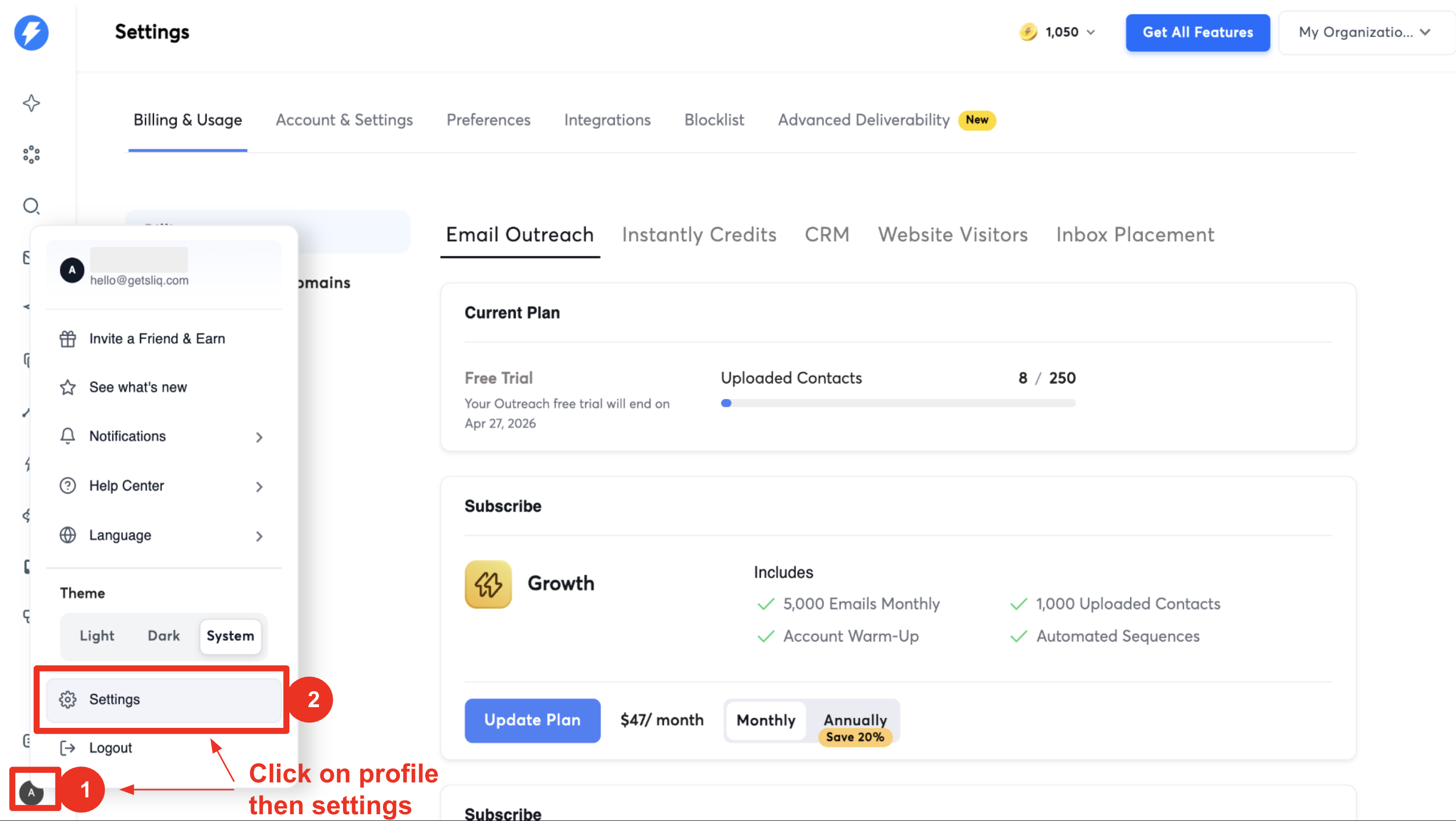
Click your profile icon — In Instantly, click your profile icon in the bottom-left corner.
Go to Settings — Click Settings in the menu that appears.
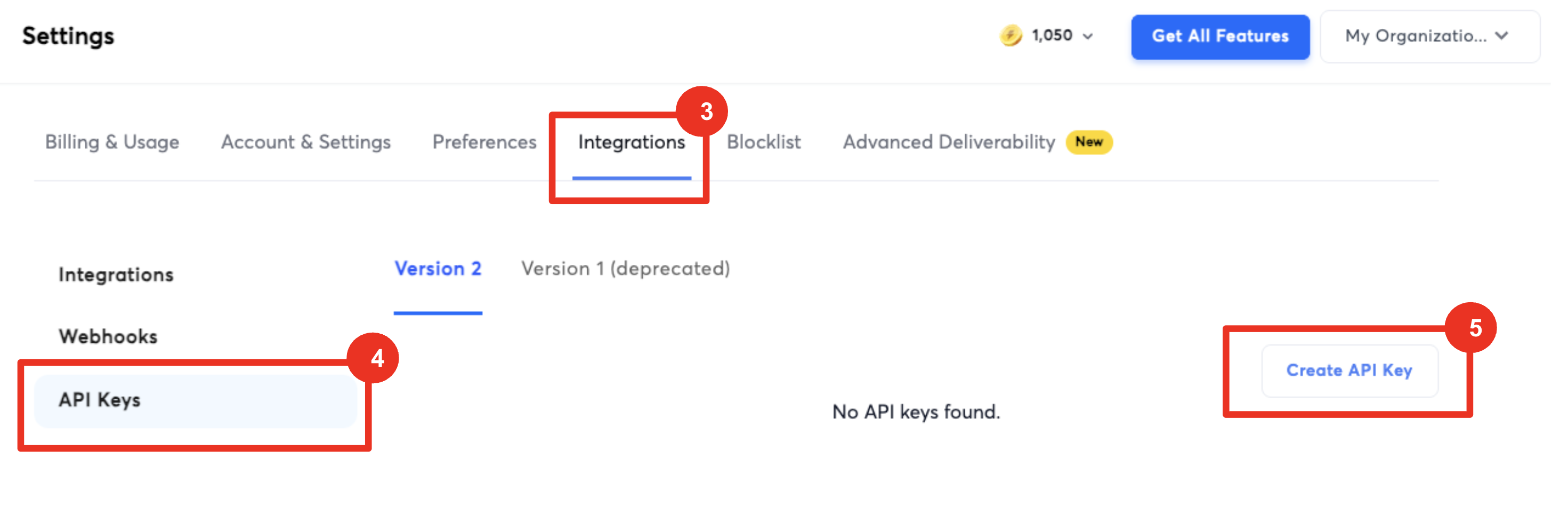
Navigate to Integrations — In the Settings sidebar, click Integrations.
Create a new API key — Click Create New Key. Give it a name like "Sliq".
Select scopes — The easiest option is to select
all:allfor full access.If you prefer more restrictive permissions, select these minimum scopes:
campaigns:all— create, update, and pause campaignsleads:all— add, move, and manage leadsemails:read— view replies and email statusaccounts:read— list sending accountsinbox:read— campaign performance data
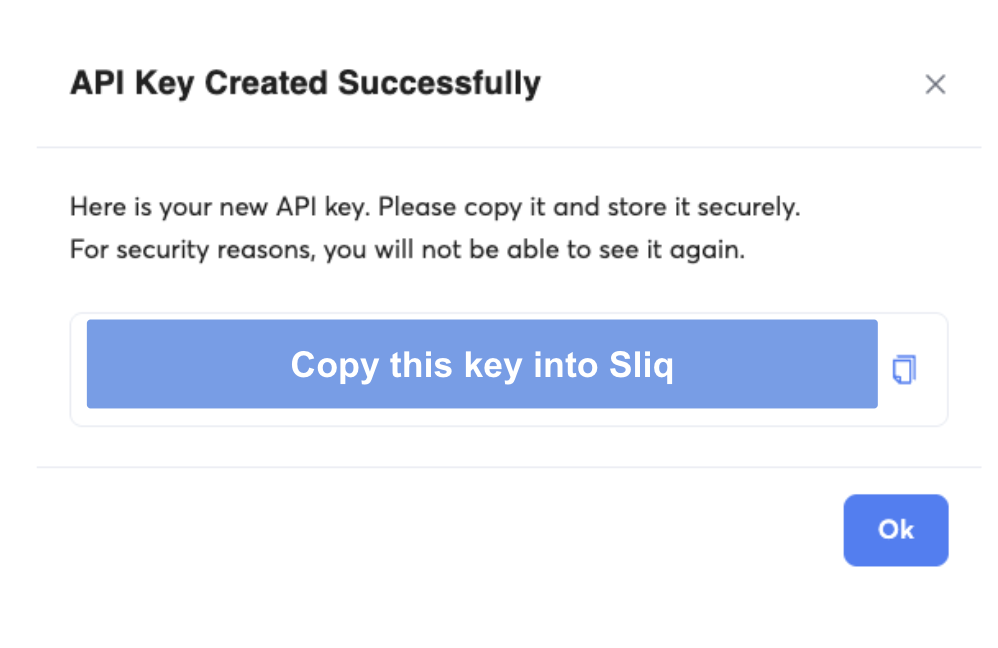
Copy the API key — Click Create, then copy the key. You'll paste this into Sliq in the next step.
- Connect to Sliq
- From chat: If Sliq is walking you through setup, click the "Connect Instantly to Sliq" link in the chat — a modal will pop up where you can paste your API key.
- From Integrations: Go to the Integrations page in Sliq, find Instantly, click Connect, and paste your API key.
Set up a sending account
Before you can send any campaign, you need at least one sending account in Instantly. Here's how to add one:
- Open Email Accounts — In Instantly, click Email Accounts in the left sidebar.
- Add a new account — Click Add New in the top-right corner.
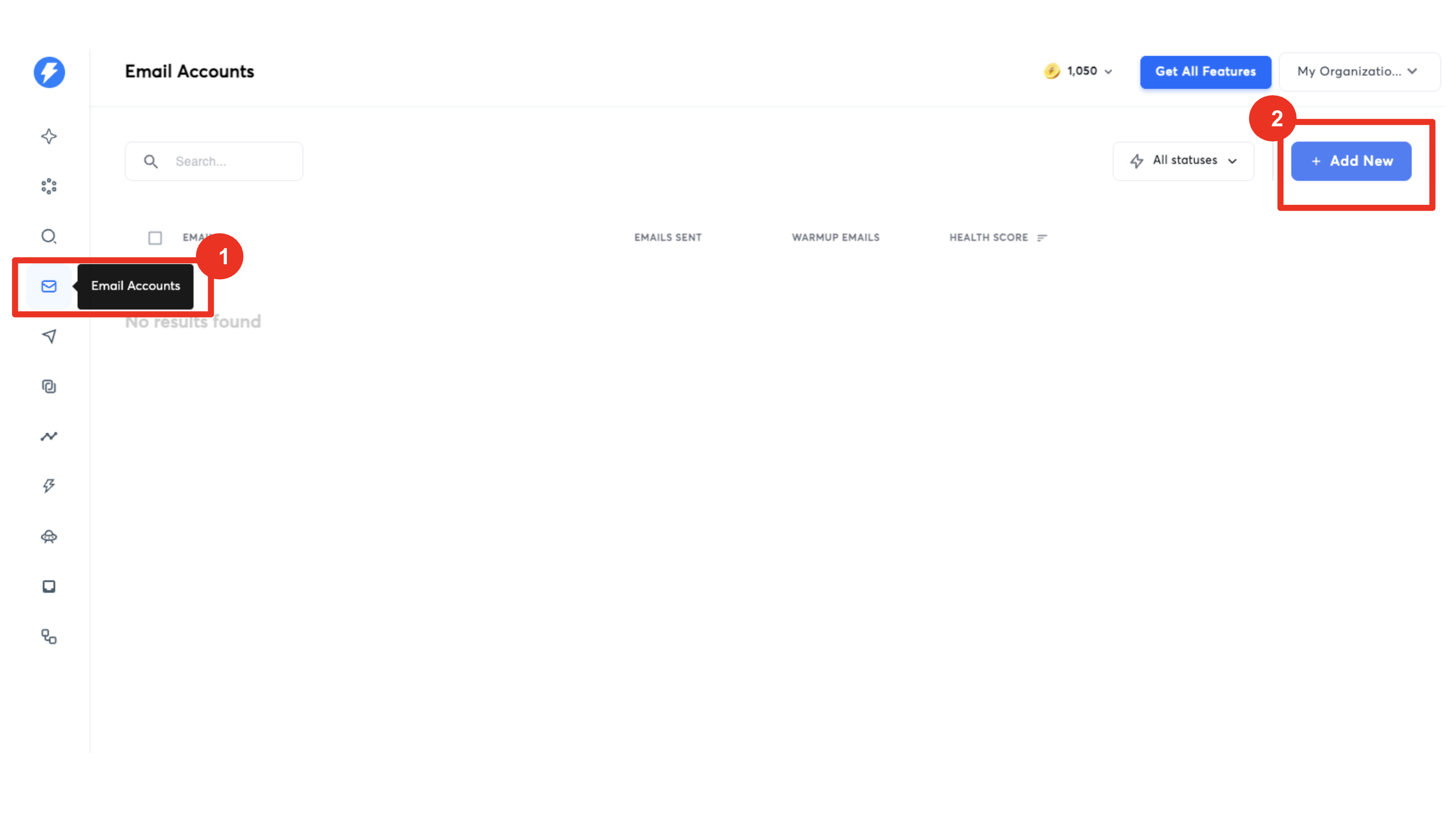
You'll see three options:
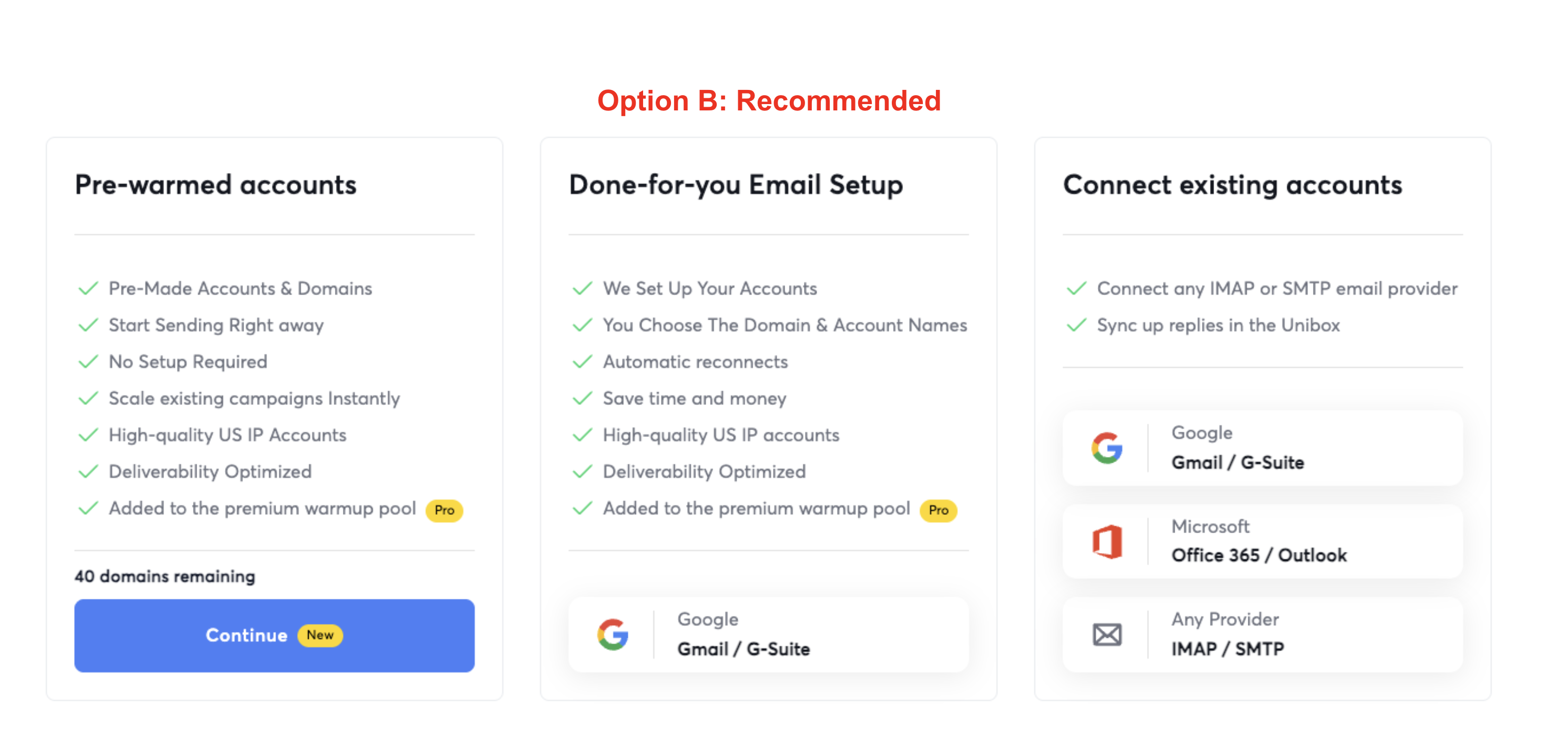
Option A: Pre-warmed accounts
Pre-made accounts on domains that are already warmed up and ready to send immediately.
Pros:
- Fastest path to sending at scale
- No warmup wait
- Deliverability optimized
- Protects your primary domain
Cons:
- Costs money (paid Instantly feature)
- Domains are generic — won't match your brand
- Less professional-looking to recipients
Option B: Done-for-you email setup (recommended)
Instantly creates accounts on domains you choose (e.g., alice@trysliq.io). You pick the domain names, they handle everything else.
Pros:
- Professional, brand-matched domains
- Instantly handles DNS, setup, and warmup
- Protects your primary domain
- Automatic reconnects
Cons:
- Takes time to warm up before sending at volume
- Costs money (paid Instantly feature)
- You need to choose domain names
Option C: Connect an existing email
Connect your Google (Gmail/G-Suite), Microsoft (Office 365/Outlook), or any email provider via IMAP/SMTP.
Pros:
- Fastest setup — use an email you already have
- Free
- Sends from your real identity
Cons:
- Cold outreach from your primary domain can hurt its deliverability
- Not ideal for high-volume cold campaigns
- No built-in warmup
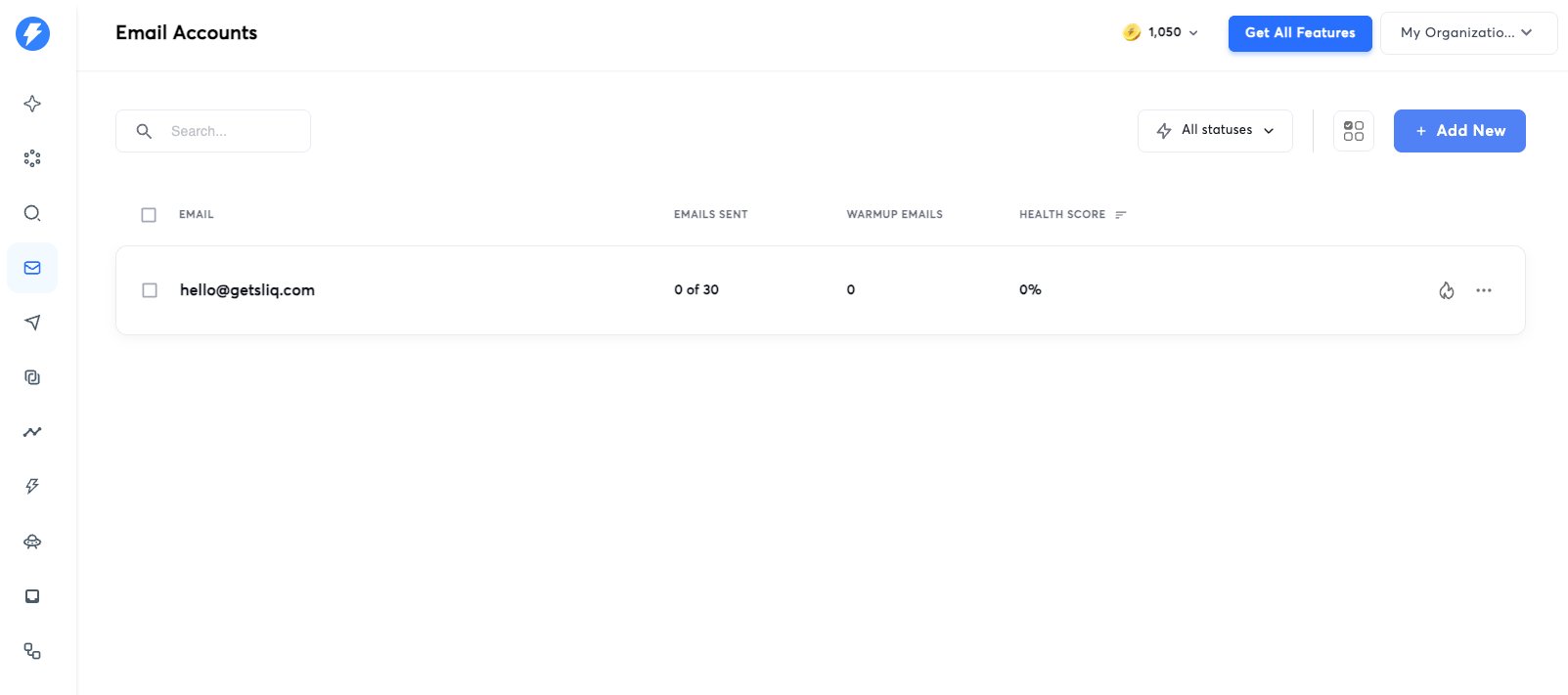
Confirming your account is set up
Once you've added a sending account, you should see it listed on the Email Accounts page in Instantly. If it shows up here, you're all set.
Warm up your sending account
If you connected an existing email or used the done-for-you setup, your account needs to be warmed up before you can send cold outreach at volume. Warmup builds your sender reputation by gradually sending and receiving emails in the background.
- How to enable: When you set up your campaign in Sliq, the agent will detect if warmup is off and offer to enable it for you automatically.
- How long it takes: At least 2 weeks. Your account is ready when the health score is above 90%.
- Pre-warmed accounts: If you purchased pre-warmed accounts from Instantly, you can skip this step — they're ready to send from day 1.
Sliq will monitor your warmup progress daily and notify you when your account is ready to launch.
Set up your campaign with Sliq
Now that Instantly is connected and you have a sending account, Sliq's AI agent will configure your Instantly campaign for you — including writing the email sequence, adding leads, and scheduling sends.
To get started:
- Go to trysliq.com and sign in.
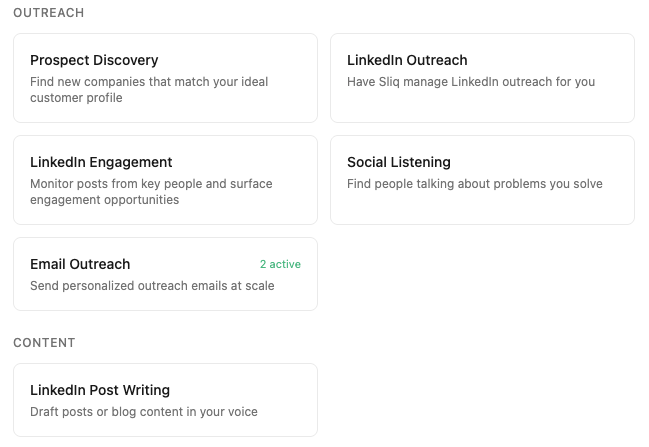
- Click the + button to add a new task and select Email Outreach.
- Choose Instantly.ai when prompted, and the agent will walk you through the rest.
Need help?
If you run into any issues, contact us at hello@getsliq.com or visit our support page.
Last updated: April 2026